Search
The Search button on the sidebar will take the user to a page where one can search for alleles in the Chewie-NS databases using a given nucleotide sequence.
Searching for an allele
In order to search for an allele, the user needs to fill the Allele Sequence box with the DNA sequence of the allele.
Important
You can only search for one allele at a time. Only exact matches will be found.
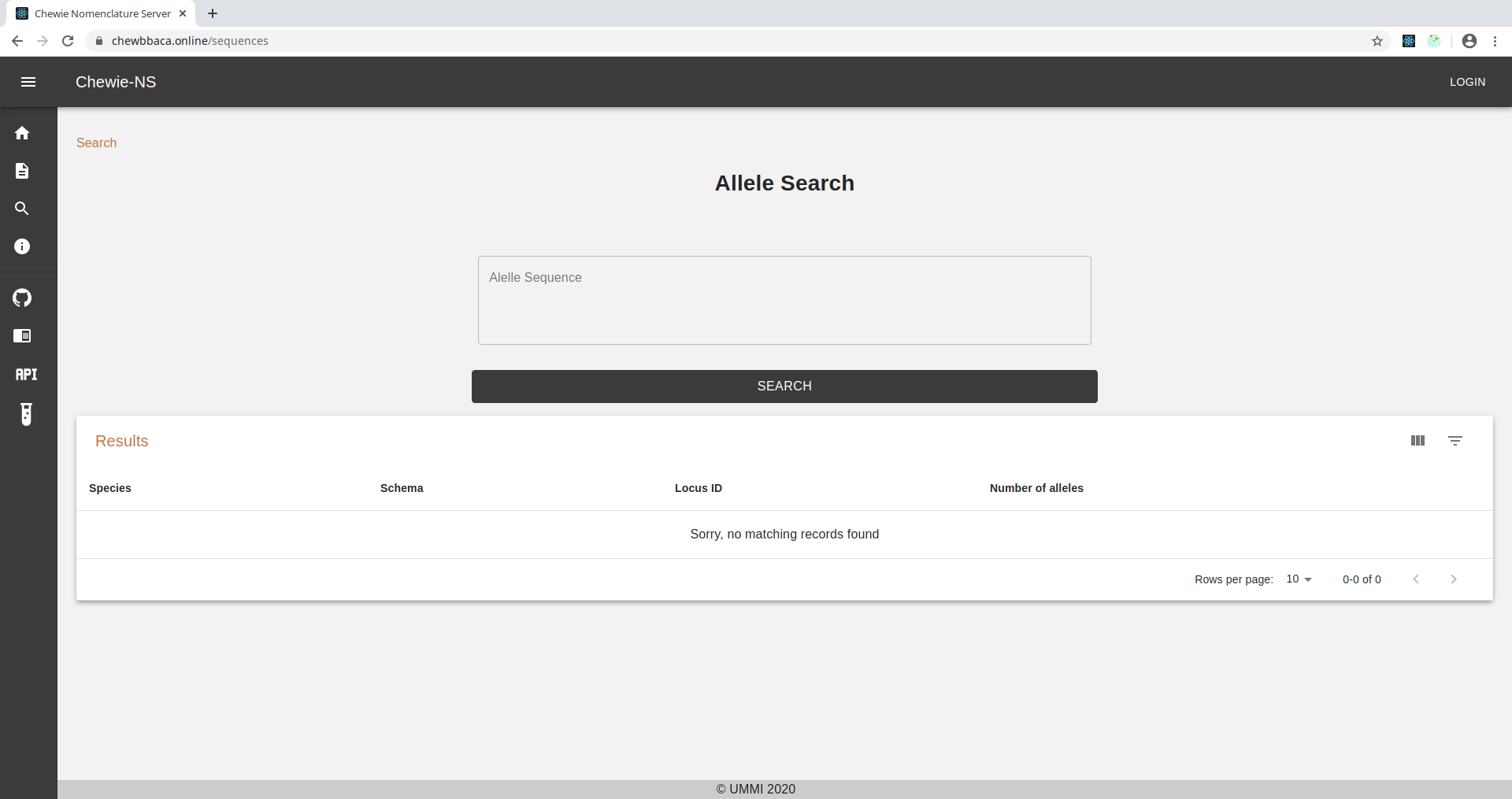
Figure 1.1: Empty Allele Sequence box.
By default when that particular sequence not exist in any Chewie-NS database, a table is rendered with a message indicating that no matches were found.
If the allele exists in the Chewie-NS database, the table will contain the following columns:
Species: the name of the species that the allele sequence belongs to.
Schema: the ID of the schema the allele corresponding to that sequence belongs to. Clicking on the Schema ID will take you to the Schema Evaluation and Annotation page.
Locus ID: the ID of the locus the allele corresponding to that sequence belongs to. Clicking on the Locus ID will take you to the Locus Details page.
Number of alleles: the number of alleles of the loci the sequence matched to.
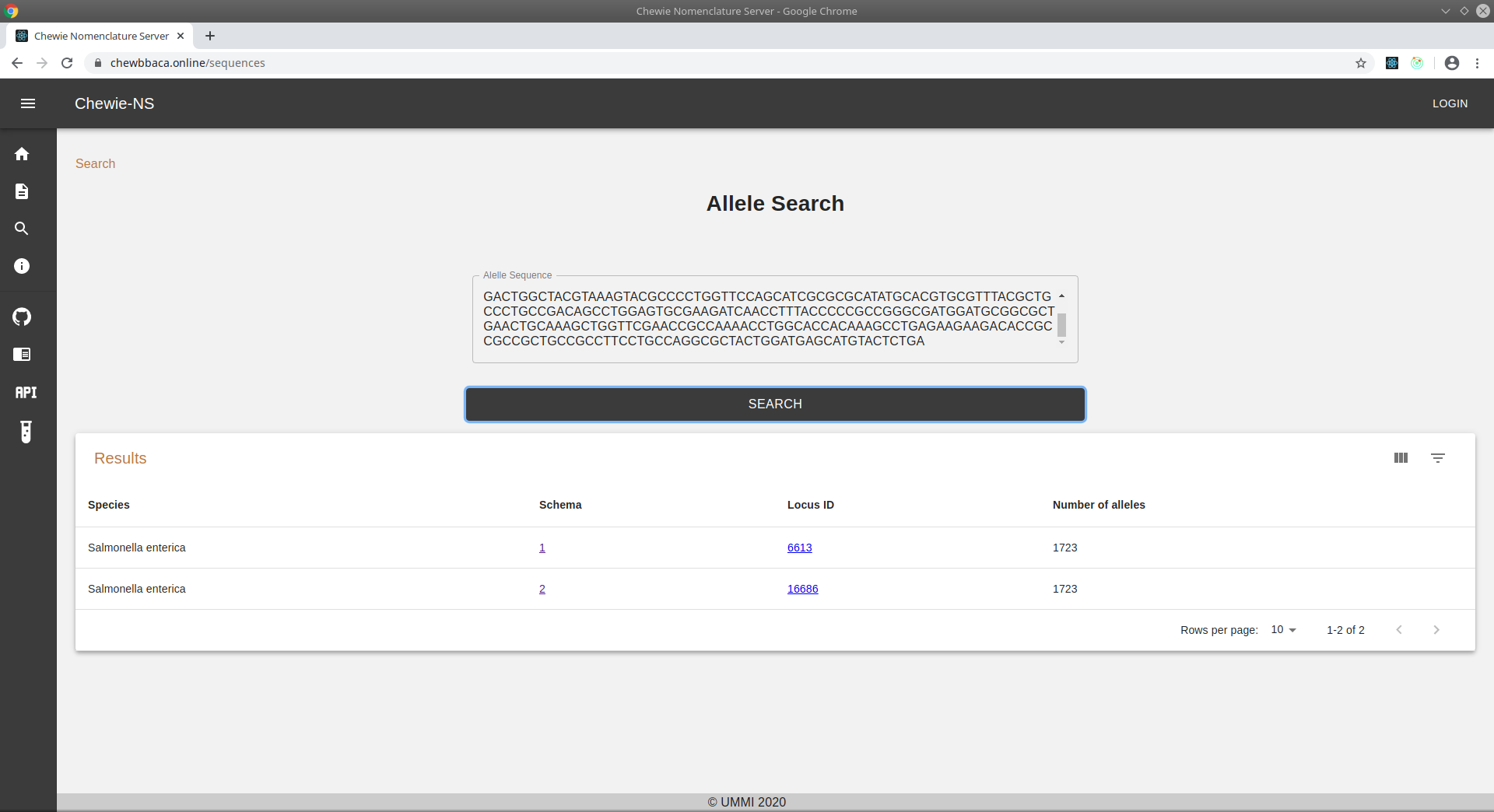
Figure 1.2: Allele Sequence box with a sequence that matched two loci in different schemas. This could be because there are two schemas for the same species containing the same allele.